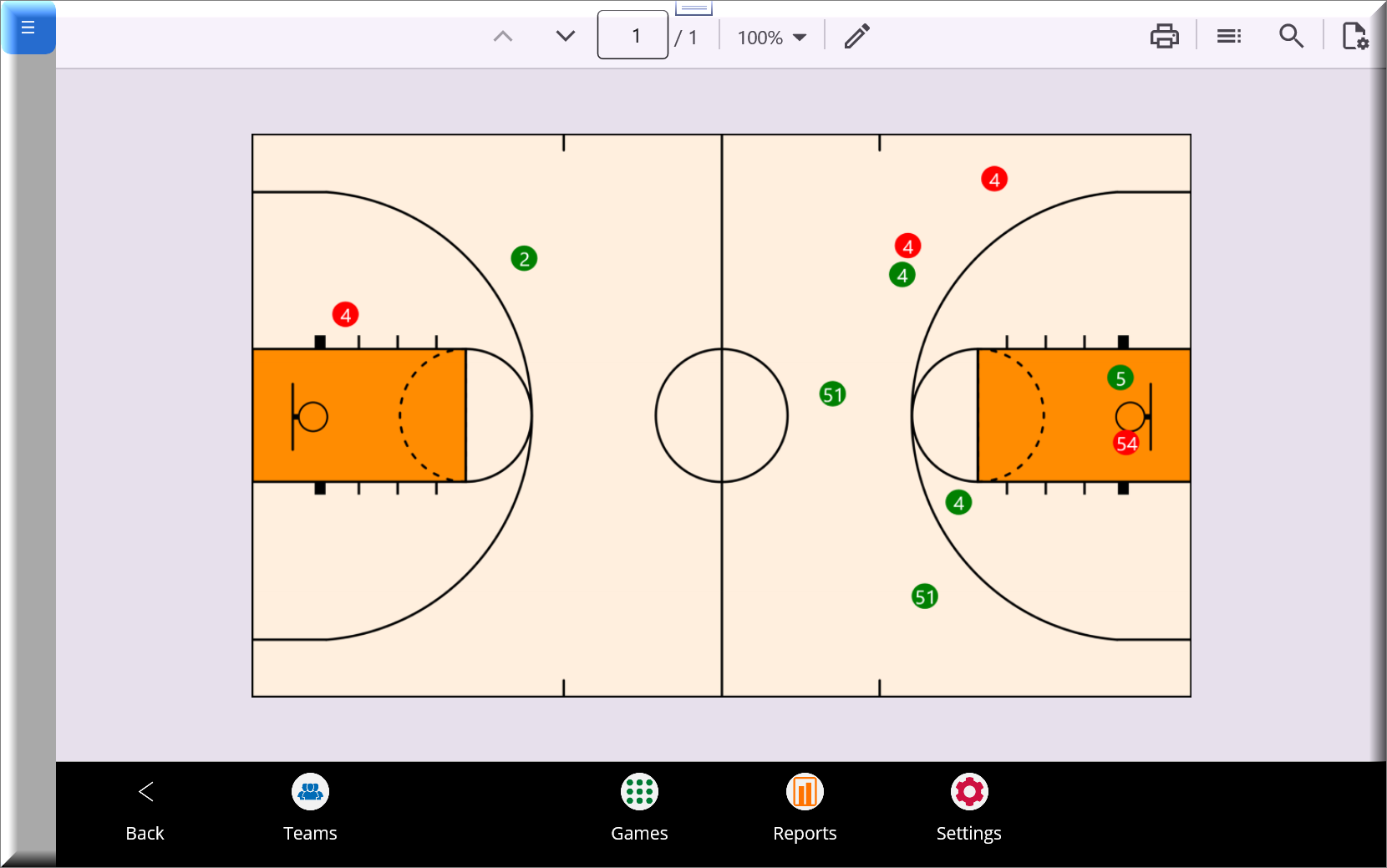
Features at a Glance:
- Teams: Manage teams and players.
- Games: Record player actions during games with minimal clicks.
- Reports: View and compare team and game stats with helpful reports.
- Settings: Customize the app, like setting team jersey colors for the game stats screen.
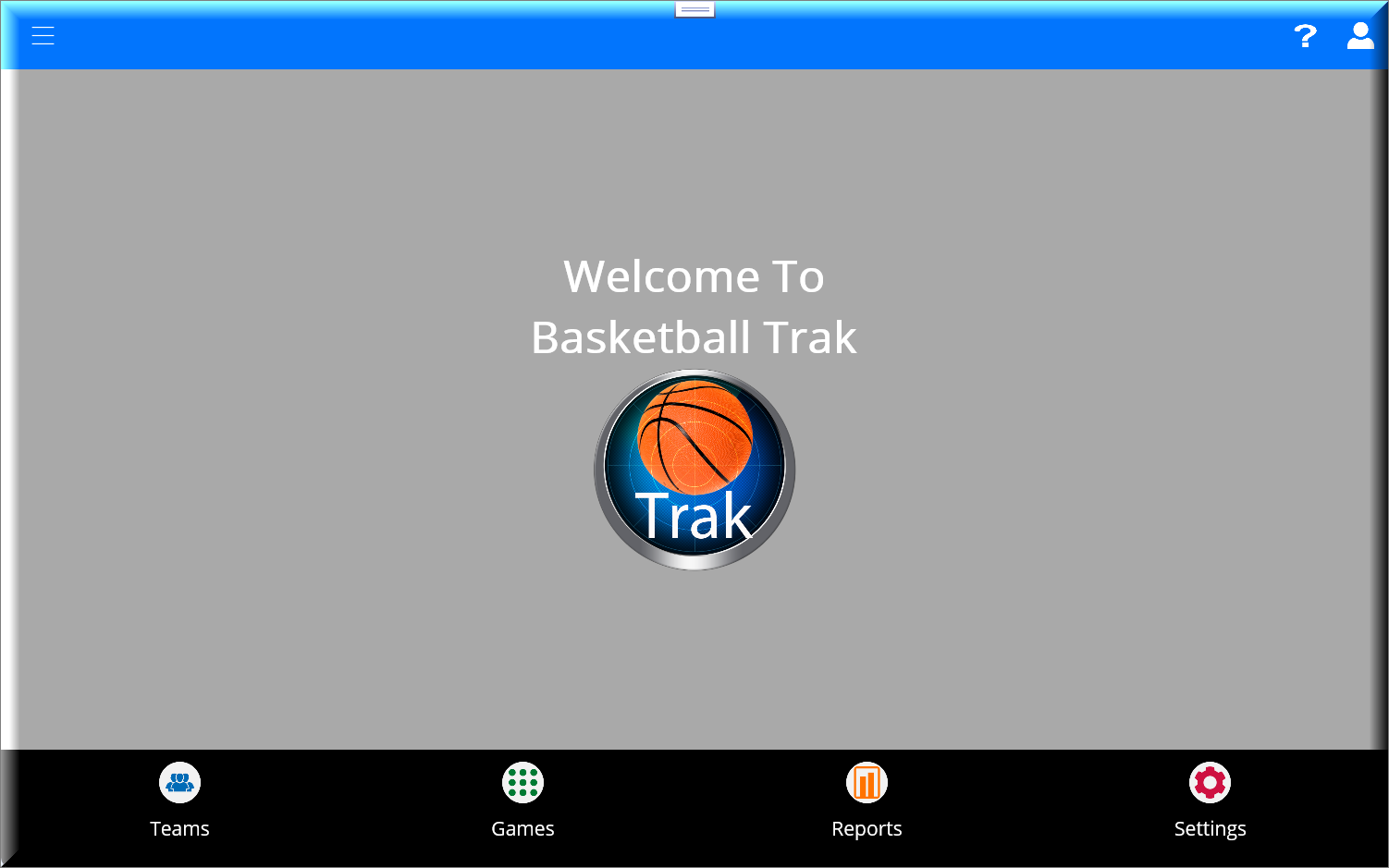
The menu bar helps you navigate through the app. Each section is clearly labeled, making it simple to find what you need.
Teams Screen Overview
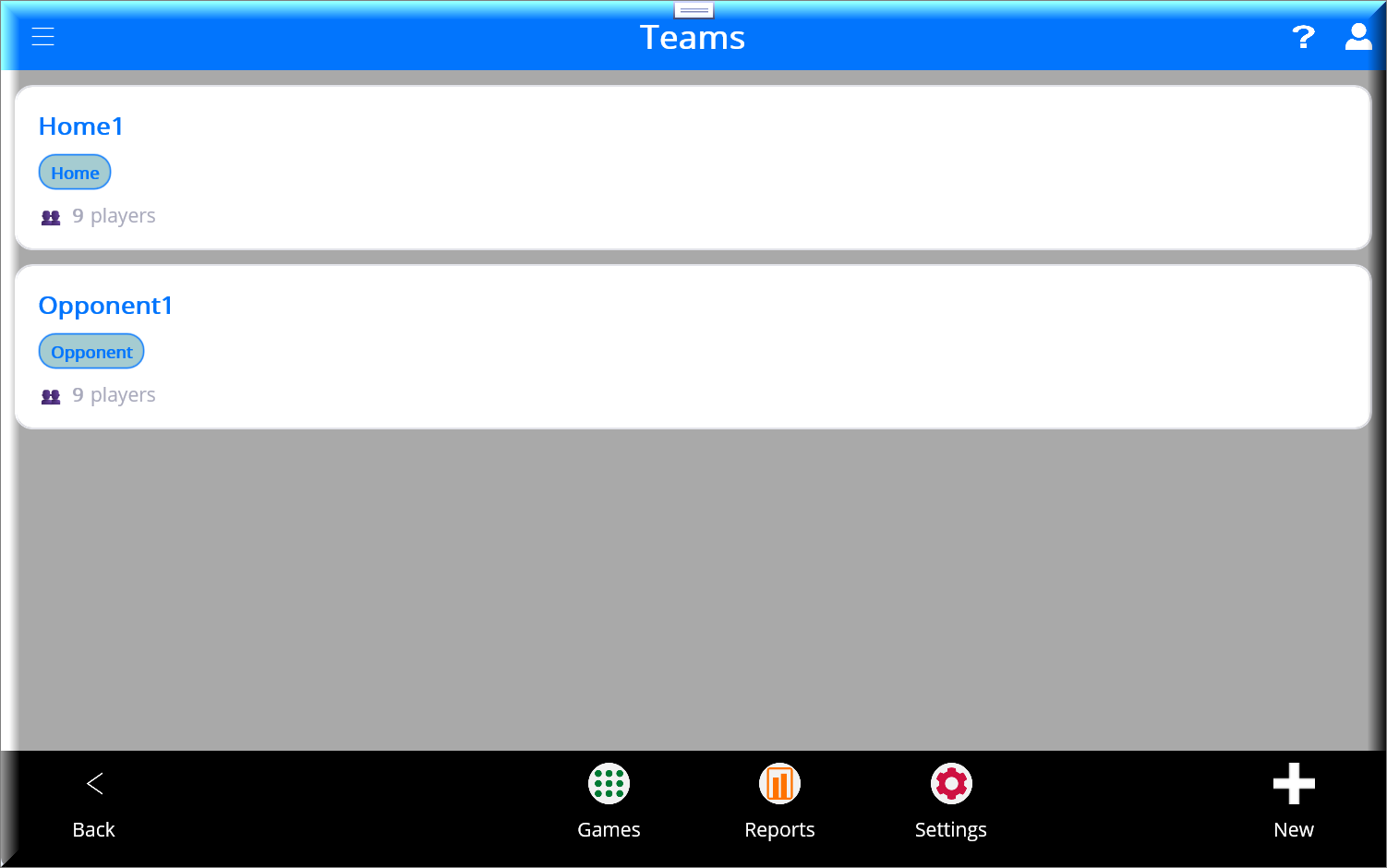
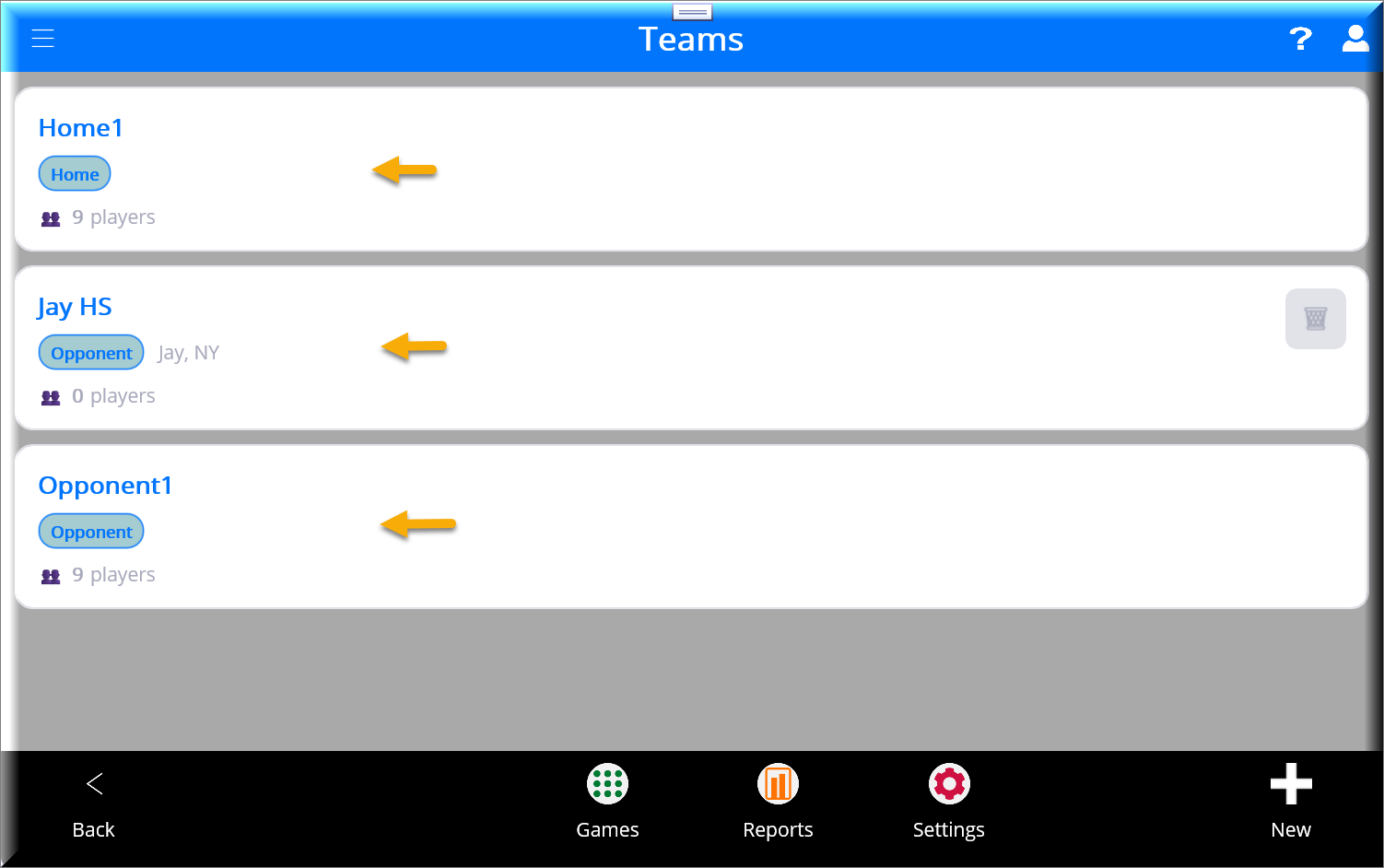
The Teams Screen is where you can view, edit, and manage your list of teams. Here’s how it works:
Main Features
Team List:
- Each team is displayed on a separate line. You’ll see:
- Team Name: The name of the team.
- Delete Icon: There is a trash can icon on the right side of each line. Tap it to delete the team.
- Edit a Team:
- Tap on any team name to go to the Edit Team Screen, where you can update the team’s details.
- Add a New Team:
- Tap the Add button (a plus icon) in the upper-right corner. This takes you to the Team Screen, where you can enter details for a new team.
Quick Actions
- To delete a team, Tap the delete icon next to the team name. A confirmation message will appear to ensure you don’t accidentally remove a team.
- To add a team, Tap the Add button in the top-right corner to create a new team.
This screen is designed to make team management simple and efficient. It lets you quickly edit, add, or remove teams as needed.
Add Team Screen Overview
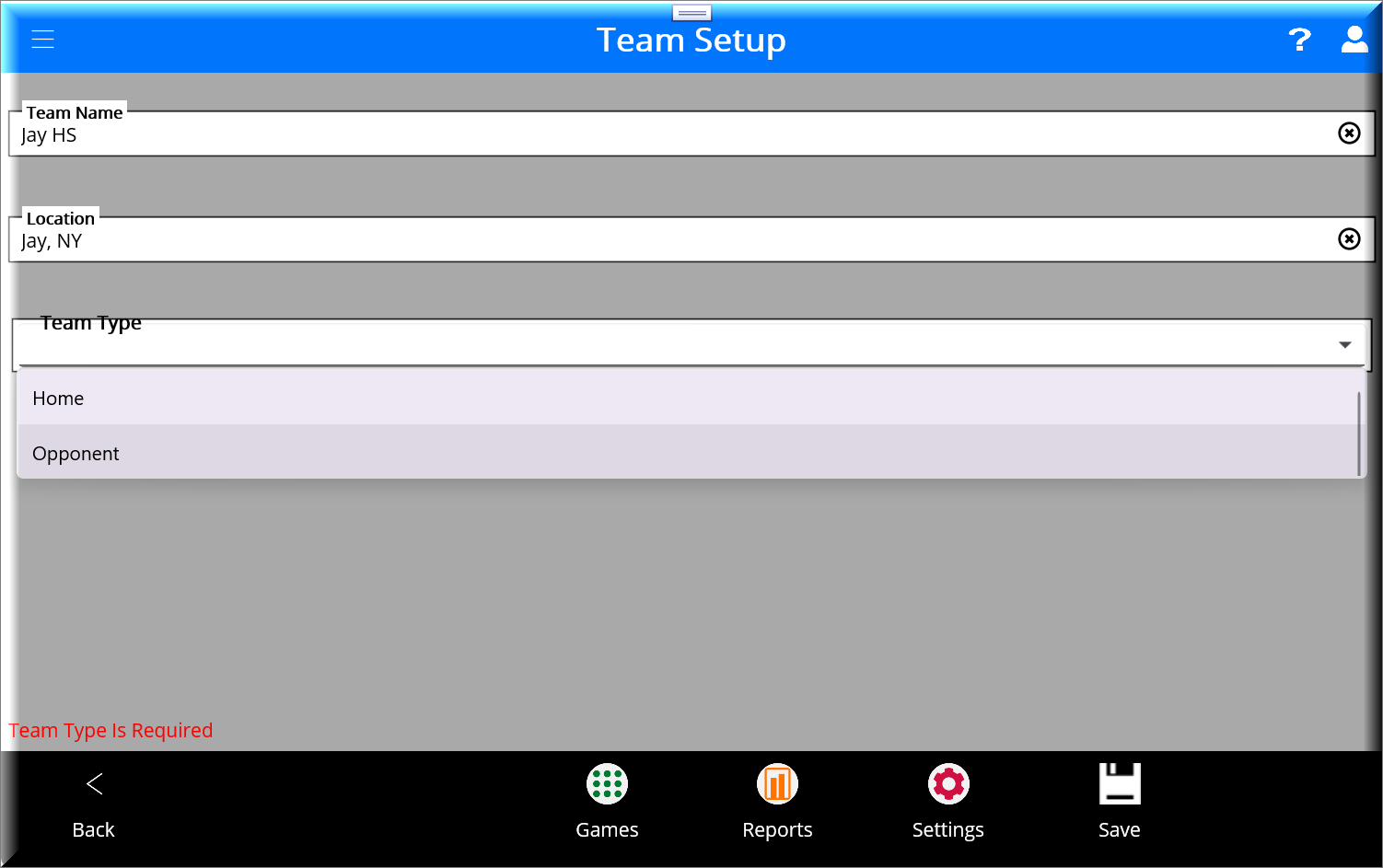
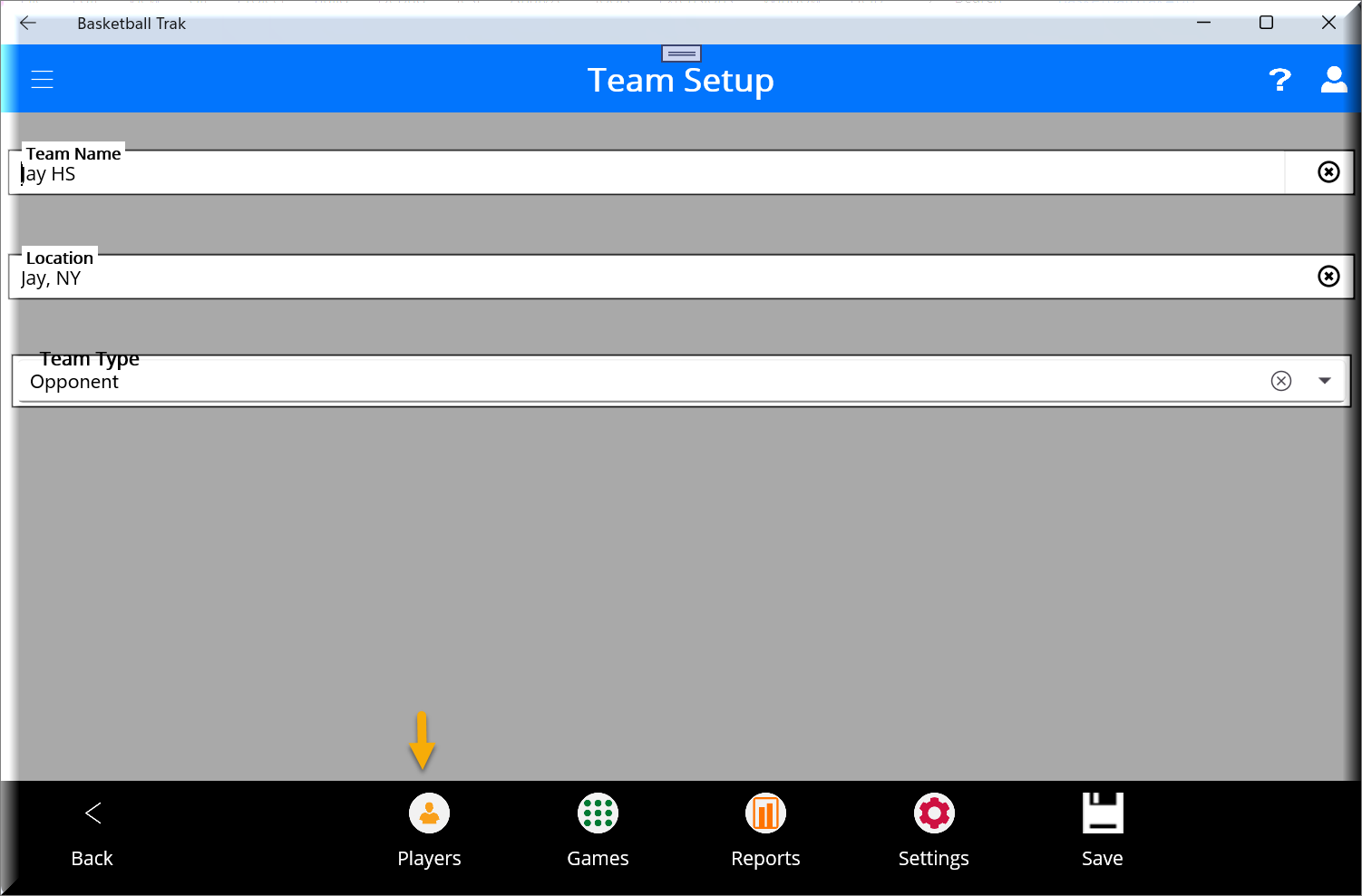
The Add Team Screen allows you to add a new team to your list. This screen is simple and user-friendly, helping you quickly input key details for the team.
Fields and Prompts
- Team Name:
- Required field.
- Must not exceed 100 characters.
- Enter the name of the team.
- Location:
- Optional field.
- Typically, this is the city where the team is based.
- Team Type:
- Optional field.
- Choose whether the team is a Home or Opponent team.
Actions
- Save Button (Right Bottom Corner):
Tap Save to confirm the team details and add it to your list.- If the Team Name is empty or exceeds 100 characters, an error message will prompt you to fix it before saving.
- Back Button (Left Bottom Corner):
Tap the Back Button to cancel adding or editing a team and return to the Team List Screen. Any unsaved changes will be discarded.
Players List Screen Overview
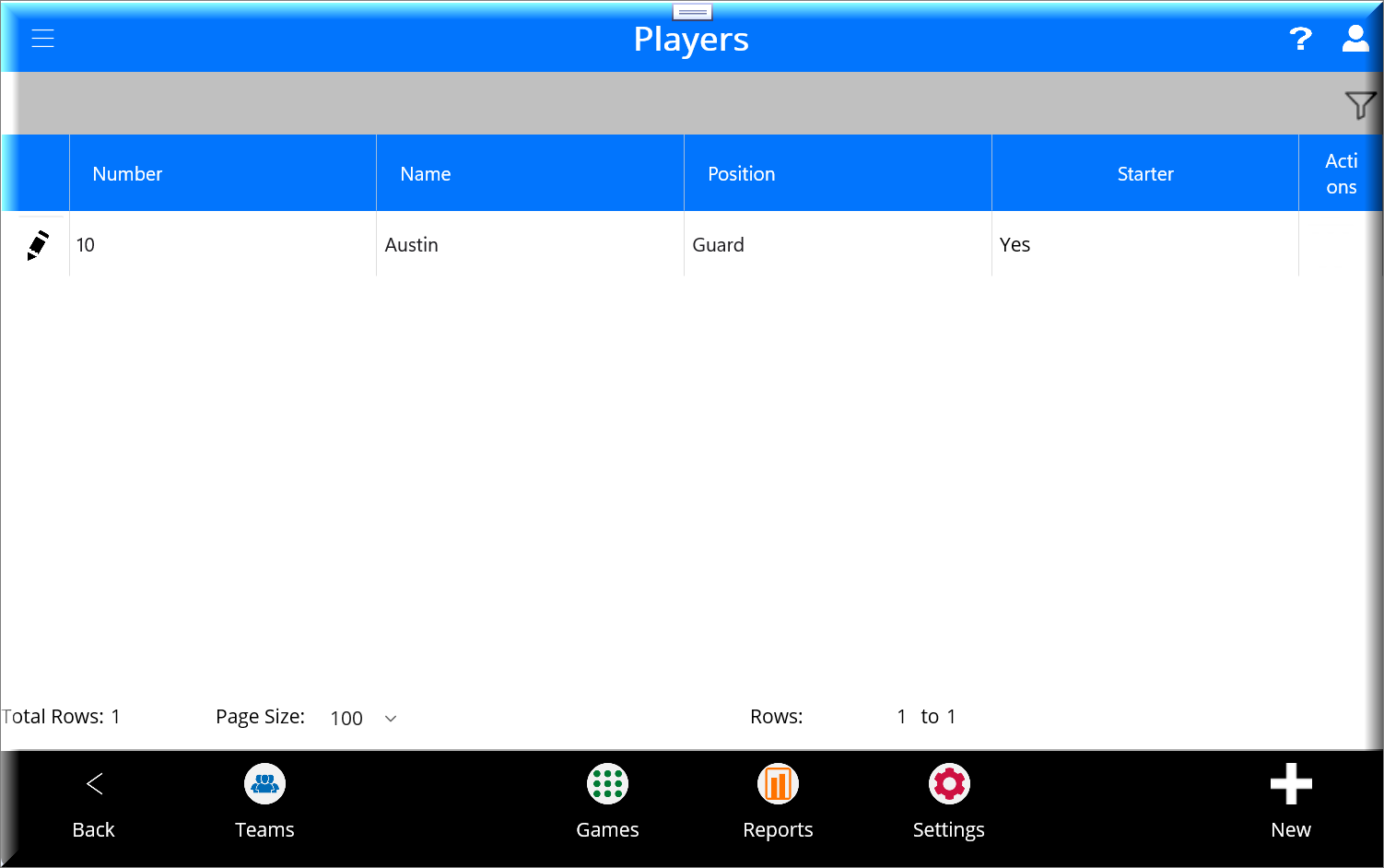
The Players List Screen displays all players for the selected team. You can add new players, edit existing ones, or delete players you no longer need from this screen by first tapping the team > then players icon in the bottom menu bar.
Main Features
- Player List:
- Each player is displayed on a separate line with the following details:
- Player Number: The jersey number of the player.
- Player Name: The name of the player.
- Delete Icon: A trash can icon on the right side of each line. Tap it to delete the player. A confirmation prompt will ensure accidental deletions don’t happen.
- Navigation Buttons:
- Add Button (Right Bottom Corner): Tap the Add Button (a plus icon) to go to the Add/Edit Player Screen, where you can enter details for a new player or update an existing one.
- Back Button (Top-Left Corner): Tap the Back Button to return to the Edit Team Screen without making changes.
Actions
- To add a player, Tap the Add Button to open the Add/Edit Player Screen.
- To edit a player: Tap on the edit (pencil) icon by a player’s name or number to open the Add/Edit Player Screen, where you can update the details.
Edit Player Screen Overview
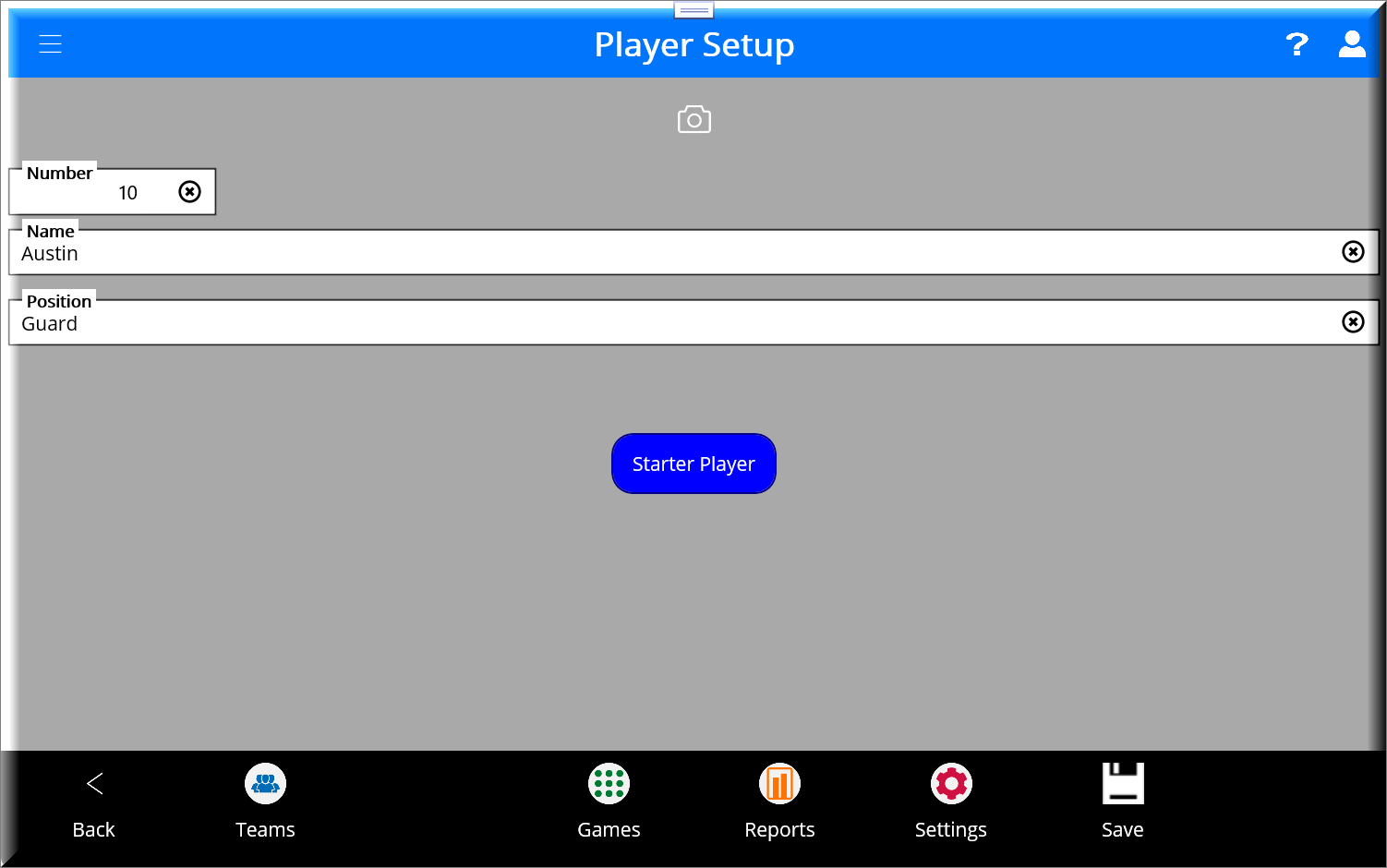
The Edit Player Screen allows you to add a new player or update details for an existing one. This screen ensures all essential player information is captured and stored correctly.
Fields and Prompts
- Number:
- Required field.
- It must be a number between 0 and 99.
- Enter the player’s jersey number.
- Name:
- Required field.
- Cannot exceed 100 characters.
- Enter the player’s full name.
- Position:
- Optional field.
- Specify the player’s position on the team (e.g., Guard, Forward, Center).
- Starter Player:
- Optional checkbox.
- Check this box if the player is a starter on the team.
Actions
- Save Button (Bottom Right Corner):
- Tap Save to save the player details.
- If the Number or Name fields are missing or invalid, you’ll receive an error message prompting you to fix the issue.
- Back Button (Bottom-Left Corner):
- Tap the Back Button to cancel the changes and return to the Players List Screen. Unsaved changes will be discarded.
Games Screen Overview
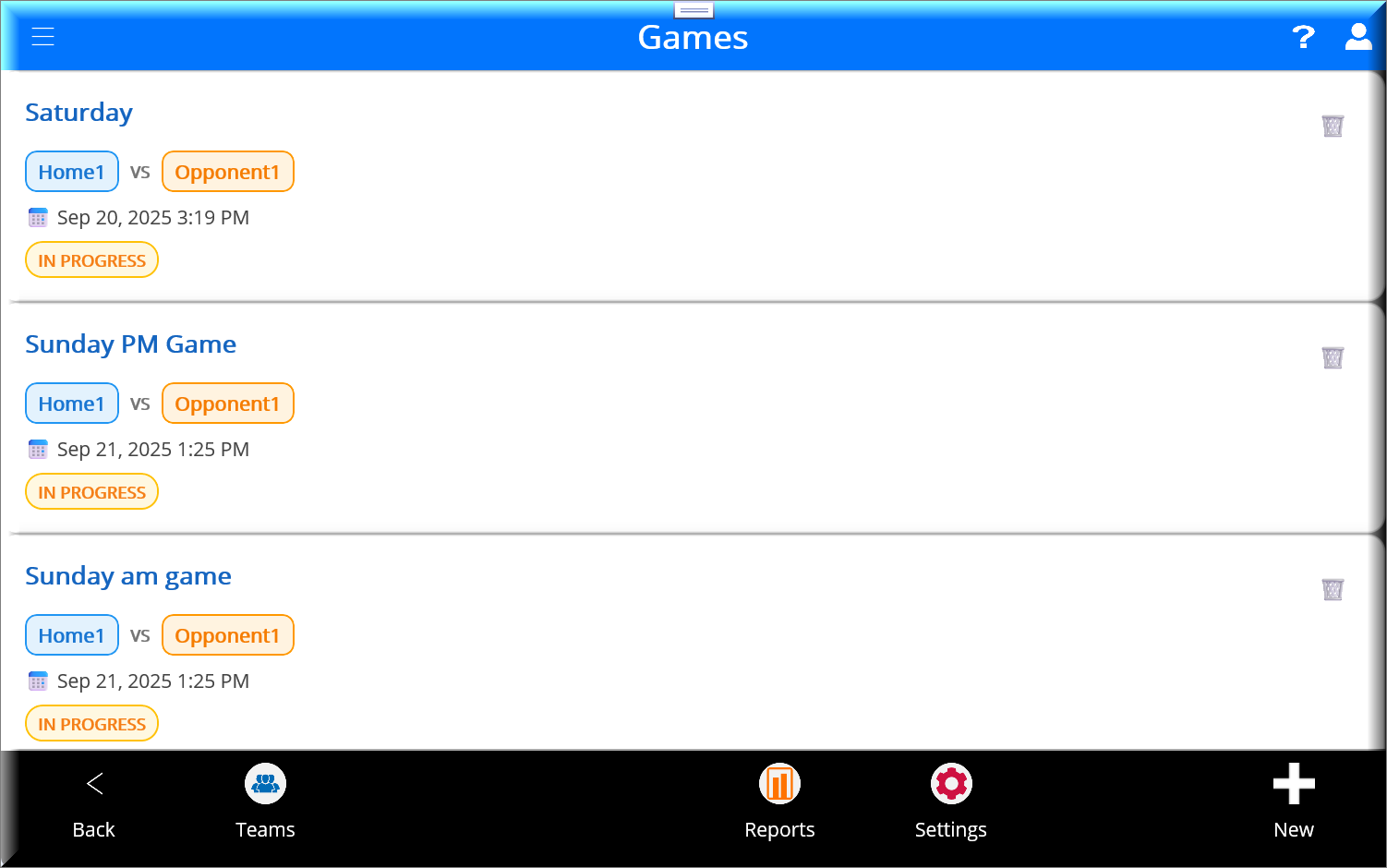
The Games Screen lists all scheduled games and provides quick access to add, edit, or delete games. This screen helps you efficiently manage your game schedule.
Main Features
- Game List:
- Each game is displayed on a separate line with the following details:
- Game Title: The name of the game.
- Game Date/Time: The scheduled date and time of the game.
- Delete Icon: There is a trash can icon on the right side of each line. Tap it to delete the game. A confirmation prompt will appear to prevent accidental deletions.
- Navigation Buttons:
- Add Button (Bottom-Right Corner): Tap the Add Button (a plus icon) to open the Add/Edit Game Screen, where you can create a new game or edit an existing one.
- Back Button (Bottom-Left Corner): Tap the Back Button to return to the previous screen.
Actions
- To add a new game, Tap the Add Button in the top-right corner to open the Game Setup Screen.
- To delete a game, Tap the trash can icon next to the game title. A confirmation message will ensure you don’t accidentally delete a game.
- To edit a game, Tap on the game title or date to open the Game Setup Screen, where you can update game details.
Game Setup Screen Overview
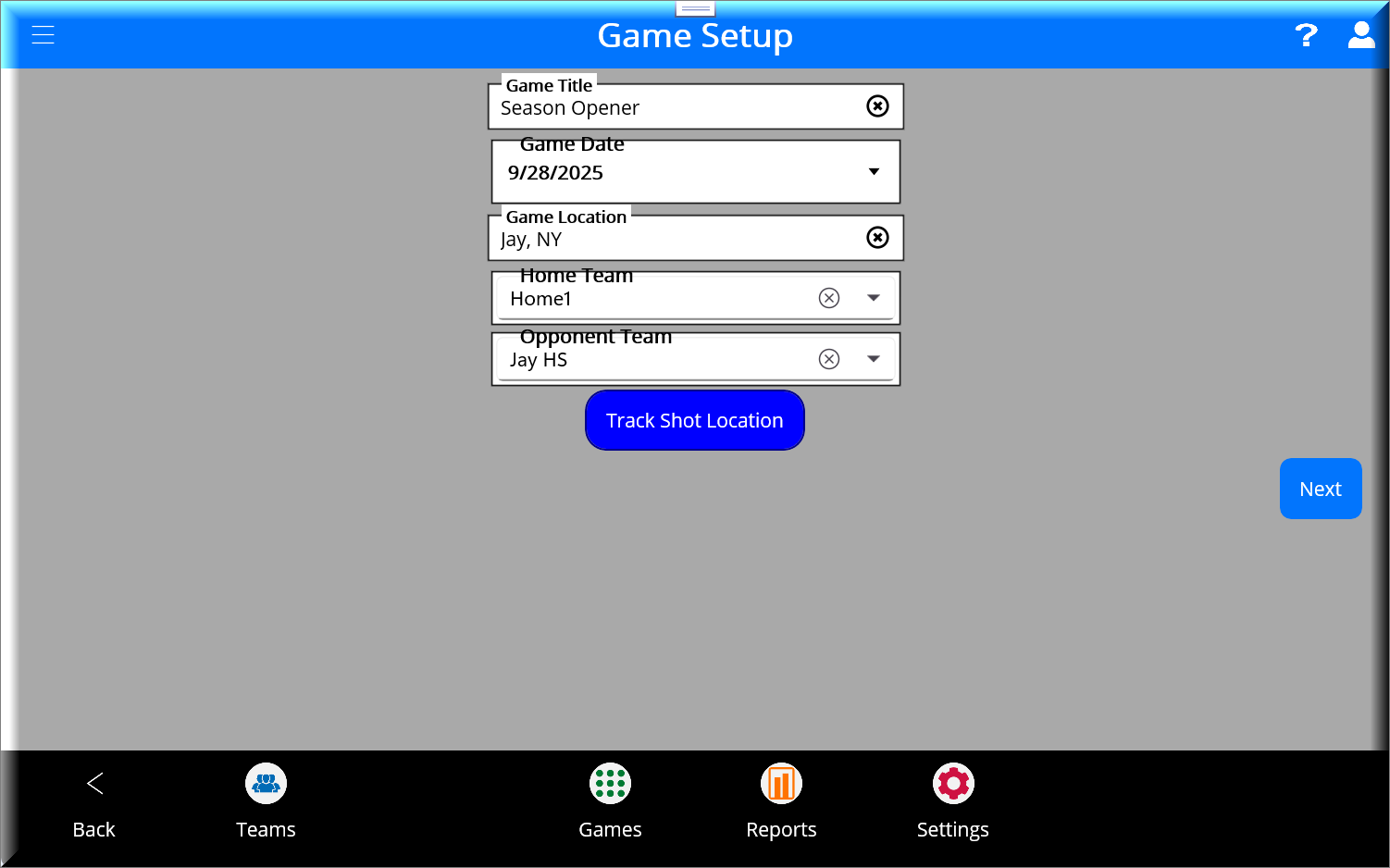
The Game Setup Screen lets you create and configure a new game or update an existing one. This screen ensures all key game details are entered before tracking game stats.
Fields and Prompts
- Game Title:
- Required field.
- Must not exceed 100 characters.
- Enter a descriptive game title (e.g., “Championship Game”).
- Game Date:
- Required field.
- Select the date of the game.
- Game Location:
- Optional field.
- Typically, it is the city where the game is played.
- Must not exceed 100 characters.
- Home Team:
- Required field.
- Select the home team from the dropdown list.
- Opponent Team:
- Optional field.
- Select the opponent team from the dropdown list.
Actions
- Next Game Button (Blue):
- Tap the Next Game Button to:
- Save the game settings.
- Navigate to the Game Action Stats Screen to begin recording game stats.
- Back Button (Bottom-Left Corner):
- Tap the Back Button to cancel the setup and return to the Game List Screen. Unsaved changes will be discarded.
Game Stats Screen Overview
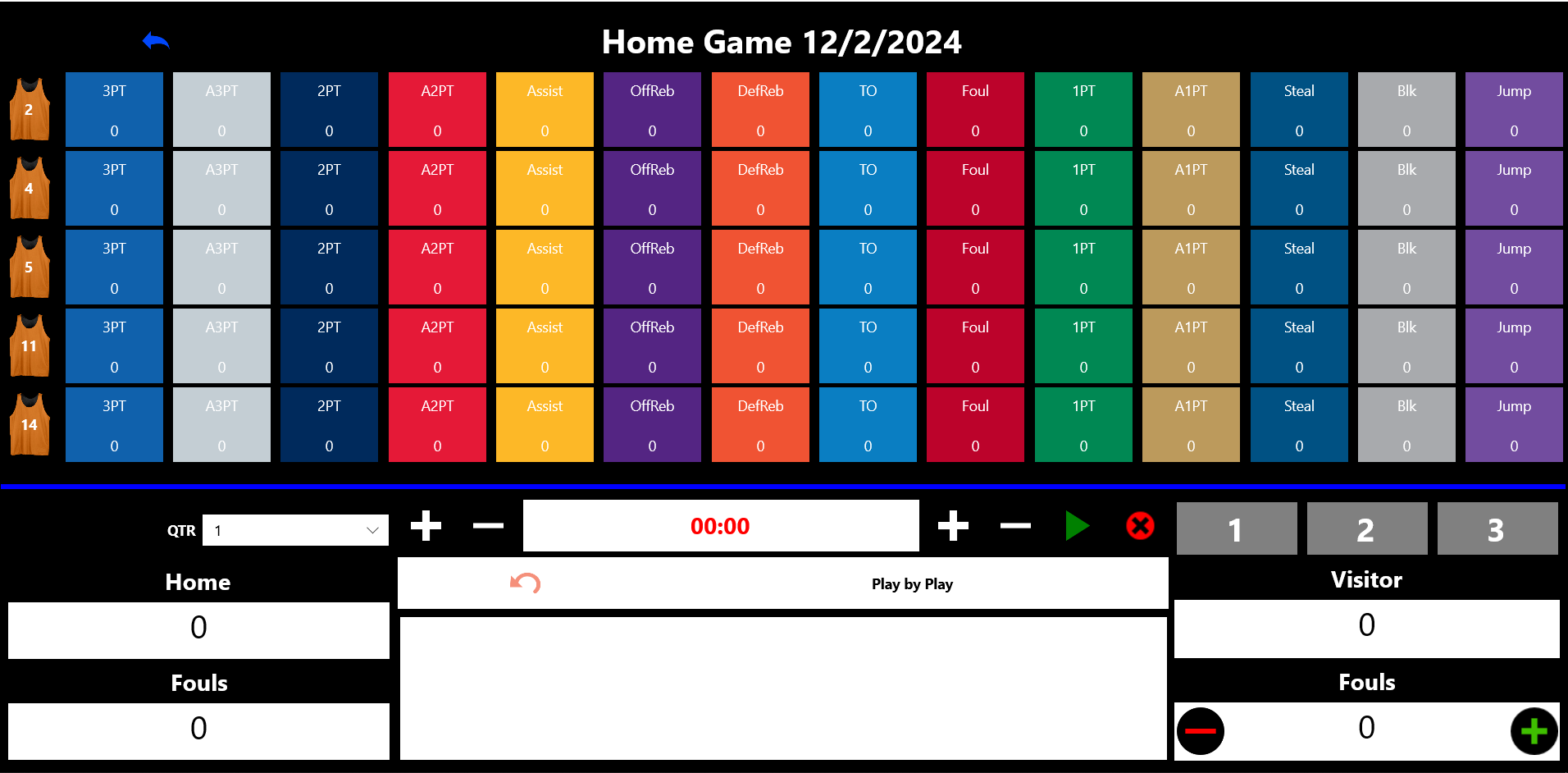
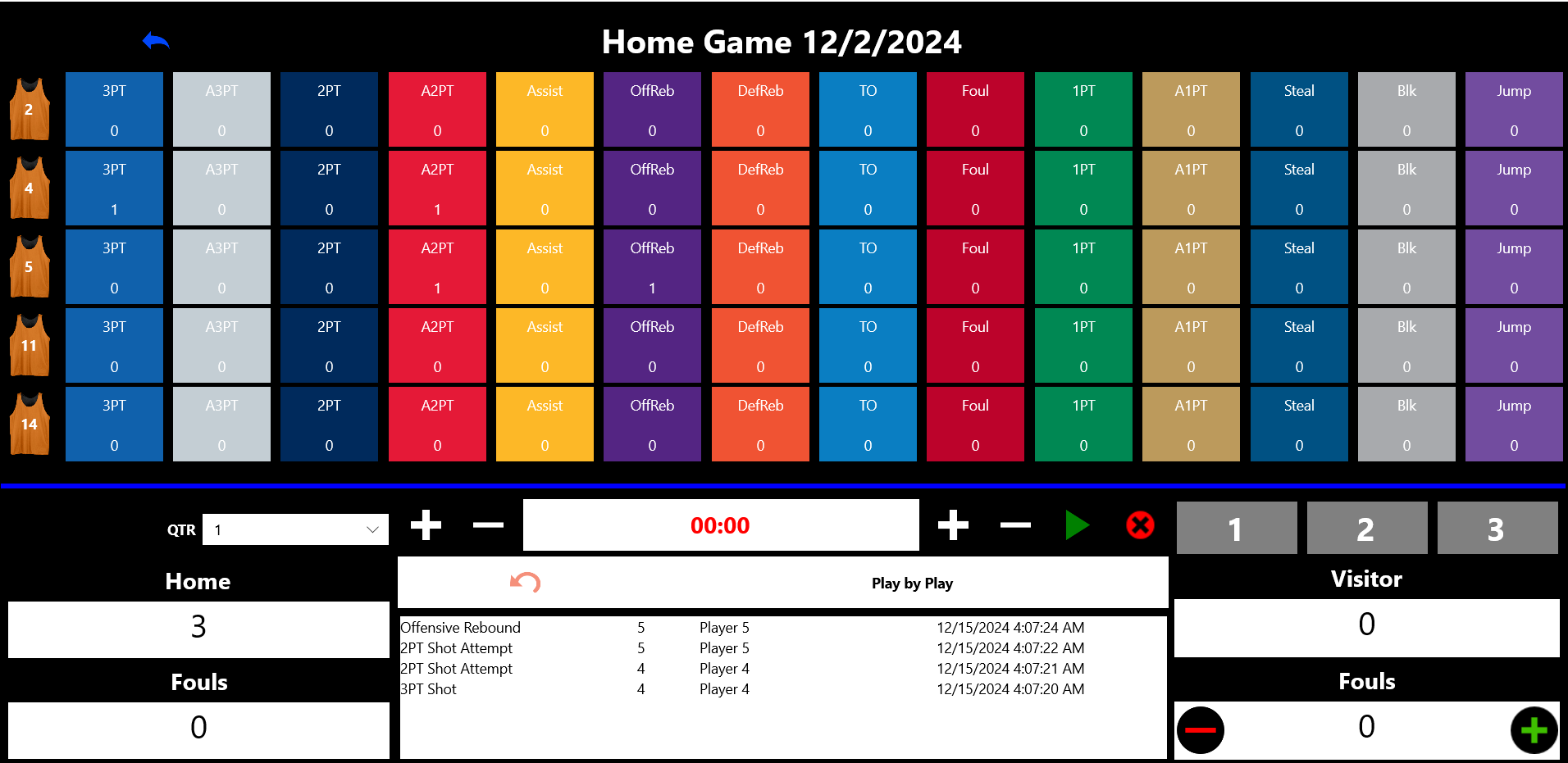
The Game Action Stats Screen is designed to track and manage game stats in real-time. It captures everything from player actions to game events quickly and efficiently.
Top Section
- Game Title:
- The game title is displayed at the top center for quick reference.
- Player Rows
- The following five rows display the players in the game and their jersey numbers.
- Game Actions:
- Tap on any action button in a player’s row to record their actions. The actions are:
- 3PT: 3-point shot made.
- A3PT: Attempted 3-point shot.
- 2PT: 2-point shot made.
- A2PT: Attempted 2-point shot.
- Assist: Assist on a shot.
- OffReb: Offensive rebound.
- DefReb: Defensive rebound.
- TO: Turnover.
- Foul: Foul committed.
- 1PT: Free throw made.
- A1PT: Attempted free throw.
- Steal: Stealing the ball from the opposing team.
- Blk: Blocking a shot.
- Jump: Gaining possession during a jump ball.
- Player Jerseys:
- Tap on a player’s jersey number to swap them out with another player.
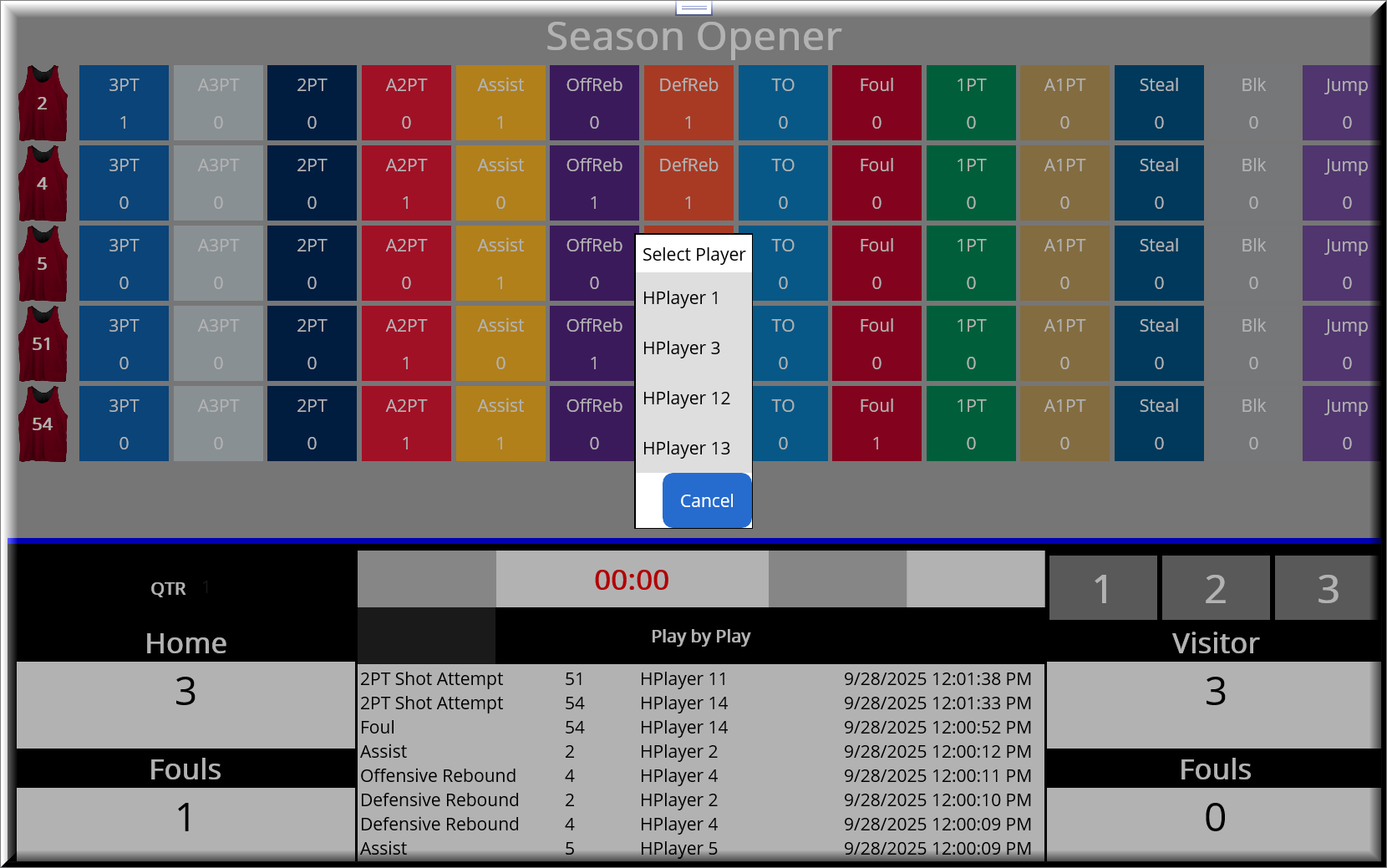
Lower Left Section: Home Team Stats
- QTR: Displays the current game quarter.
- Tap + to advance to the next quarter.
- Tap – to return to the previous quarter.
- Home Team Points and Fouls:
- Home team points are displayed under the quarter.
- Fouls are shown below the points.
Lower Right Section: Visitor Team Stats
- Add Points:
- Tap 1, 2, or 3 to add points to the visitor team’s score.
- Visitor Team Fouls:
- Tap + to increase fouls for the visitor team.
- Tap – to decrease fouls for the visitor team.
Lower Center Section: Game Clock and Action List
- Game Clock:
- Use the + and – icons to adjust the time.
- Tap the Right Arrow to start the clock.
- Tap the Stop Icon to stop the clock.
- Action List:
- All recorded actions will appear here in real-time.
- To remove an action:
- Select the action from the list.
- Tap the Back Arrow above the action list to delete it.
Settings Screen Overview
The Settings Screen allows you to customize default preferences for your games. These settings save time by pre-selecting frequently used options when setting up games.
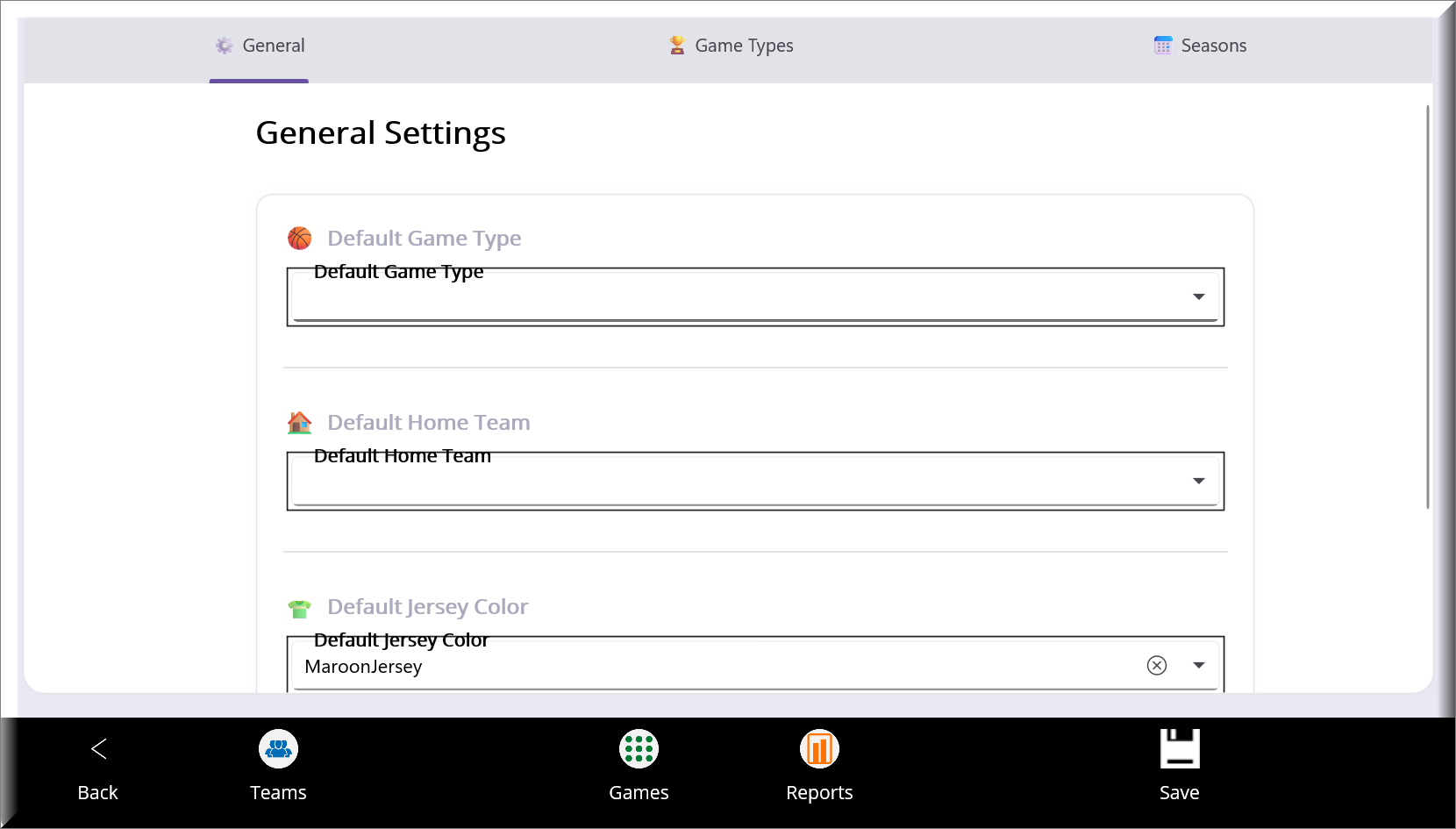
Settings List
- Default Game Type:
- Tap to open a dropdown list of available game types.
- Select the game type you want as the default for new games.
- Default Home Team:
- Tap to open a dropdown list of home teams.
- Choose the team you want to set as the default home team for new games.
- Default Jersey Color:
- Tap to open a dropdown list of jersey colors.
- Select the color on the game stats screen to display as the default jersey color.
Usage
Tap any setting to adjust it. Once selected, the new default will automatically apply to future game setups unless manually overridden.
Game Types Tab Overview
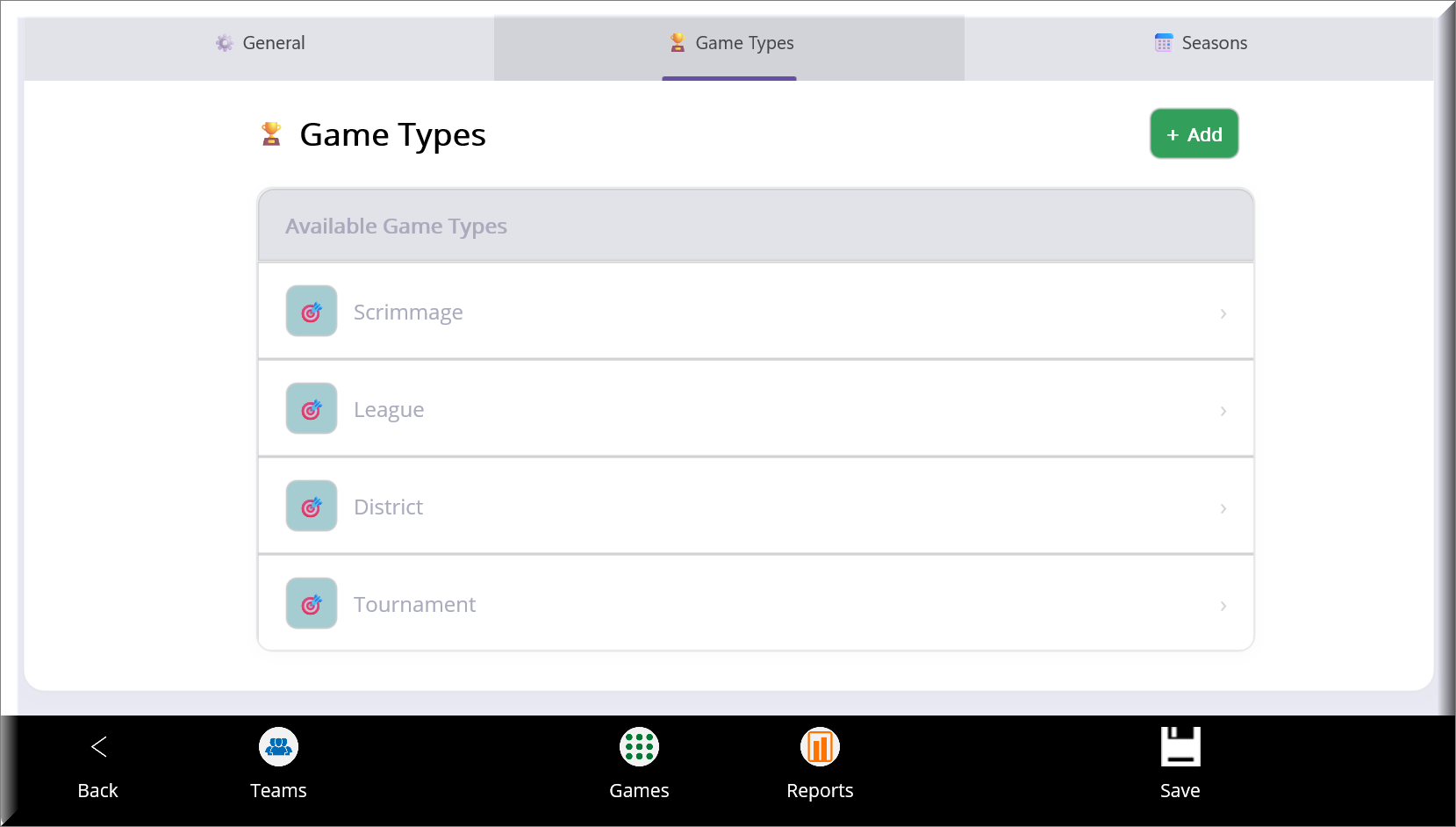
The Game Types Tab within the Settings Screen displays all game types set up in the system. You can view, add, or edit game types from this tab.
Navigation
- Accessing the Game Types Tab:
- Tap the second tab labeled Game Types in the upper-left corner of the Settings Screen to switch to the Game Types List.
- Back to Settings:
- To return to the main Settings Screen, tap the first tab labeled Settings.
Game Types List
- List of Game Types:
- All existing game types are displayed in a list format.
- Tap on any game type to open the Edit Game Type Screen, where you can update its details.
- Add Button (Top-Right Corner):
- Tap the Plus Icon to create a new game type.
- This takes you to the Add Game Type Screen, where you can enter the details for the new game type.
Actions
- To add a game type:
- Tap the Add Button to create a new game type.
- To edit a game type:
Tap on a game type in the list to open and update its details.
The Game Types Tab makes it easy to manage and customize the types of games available, ensuring your system stays organized and tailored to your needs.
Reports Screen Overview
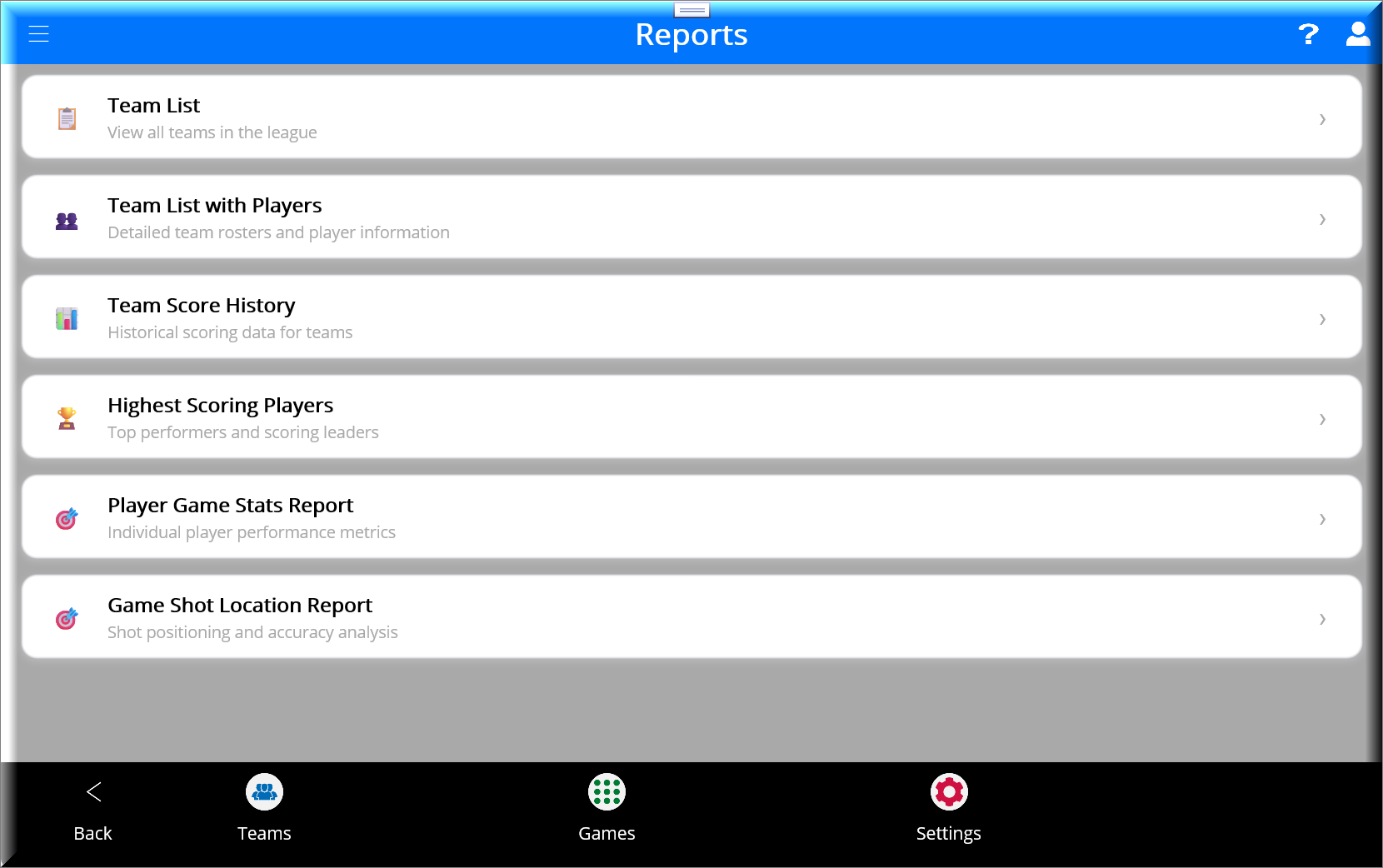
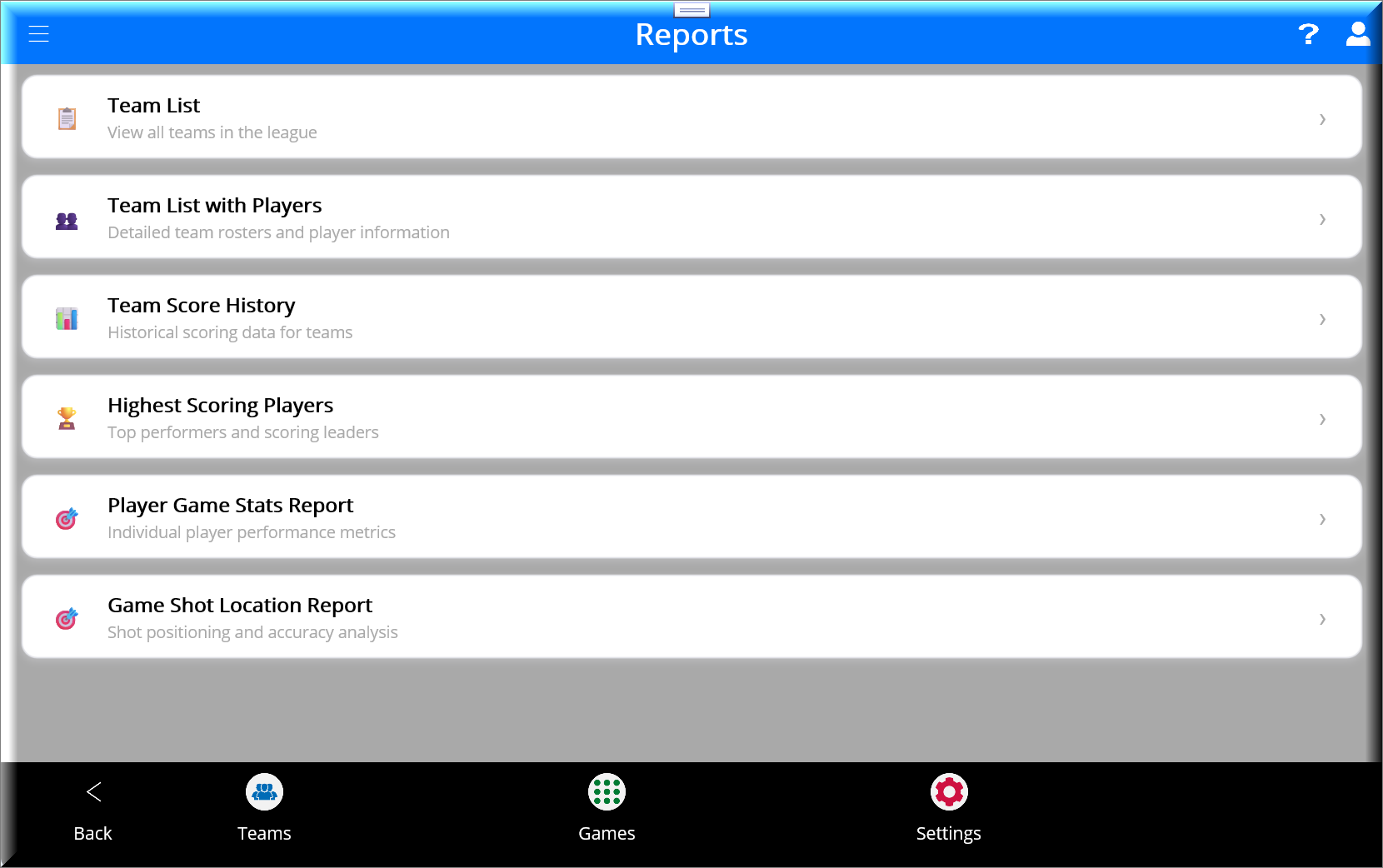
The Reports Screen provides a list of reports to help you analyze and track team and player performance. Accessing and generating reports is simple and intuitive.
Accessing the Reports Screen
- Tap the Reports Icon in the menu bar to open the Reports Screen.
Available Reports
- Team List:
- Displays a list of all teams in the system.
- Team List with Players:
- Includes all teams and their associated players.
- Game Player Stats:
- Provides detailed statistics for individual players, including points, assists, rebounds, and more.
- Game Shot Location Report:
- Analyzes where shots were taken and whether they were successful.
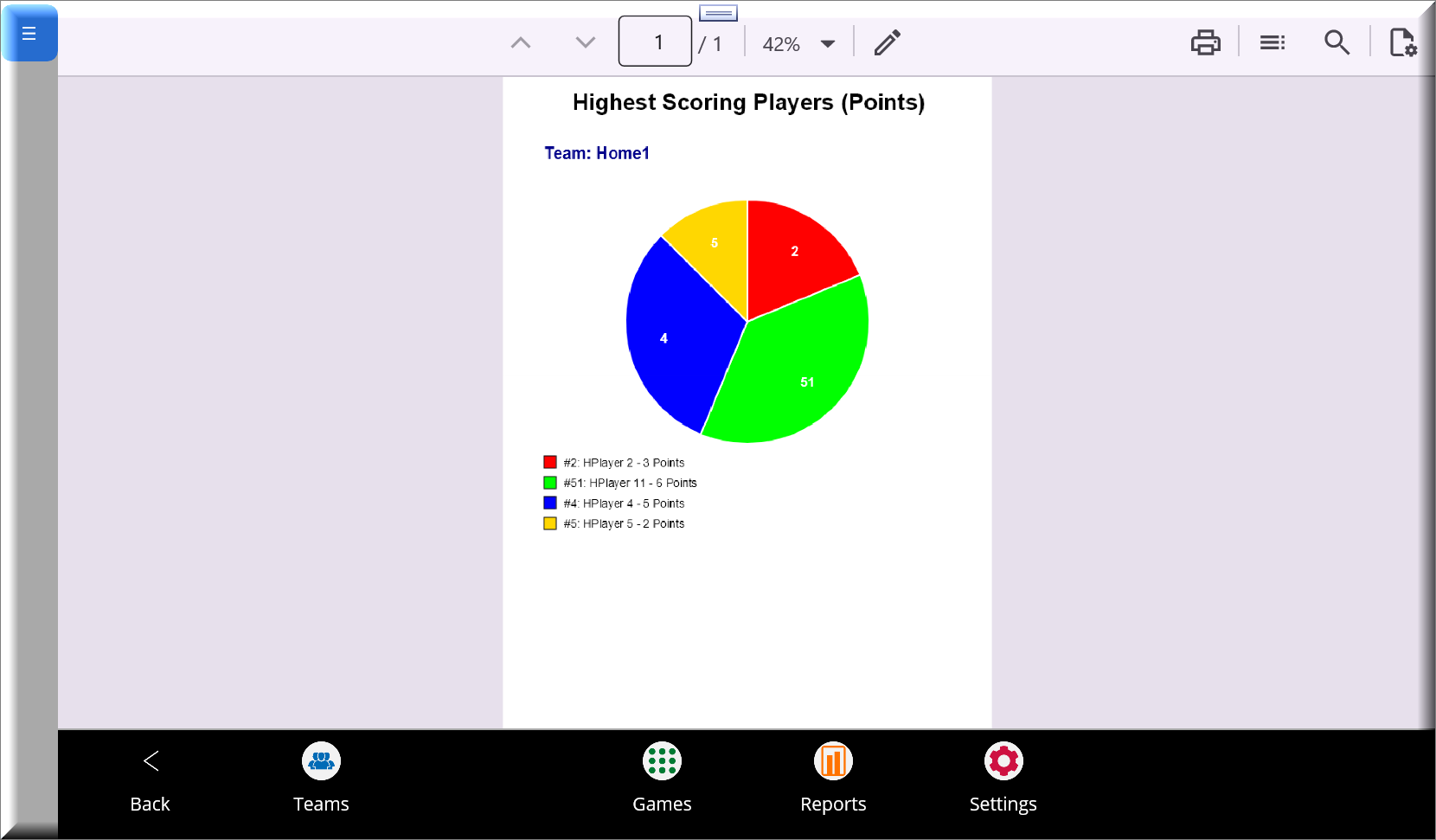
- Highest Scoring Players
- Provides a quick visual to see your top scorers easily
How to Use
- Tap on any report name to open and view the corresponding report.
- Each report is formatted to make the data clear and easy to interpret.
The Reports Screen is your hub for reviewing performance data. It helps you make informed decisions and track progress over time.
Teams List Report Overview
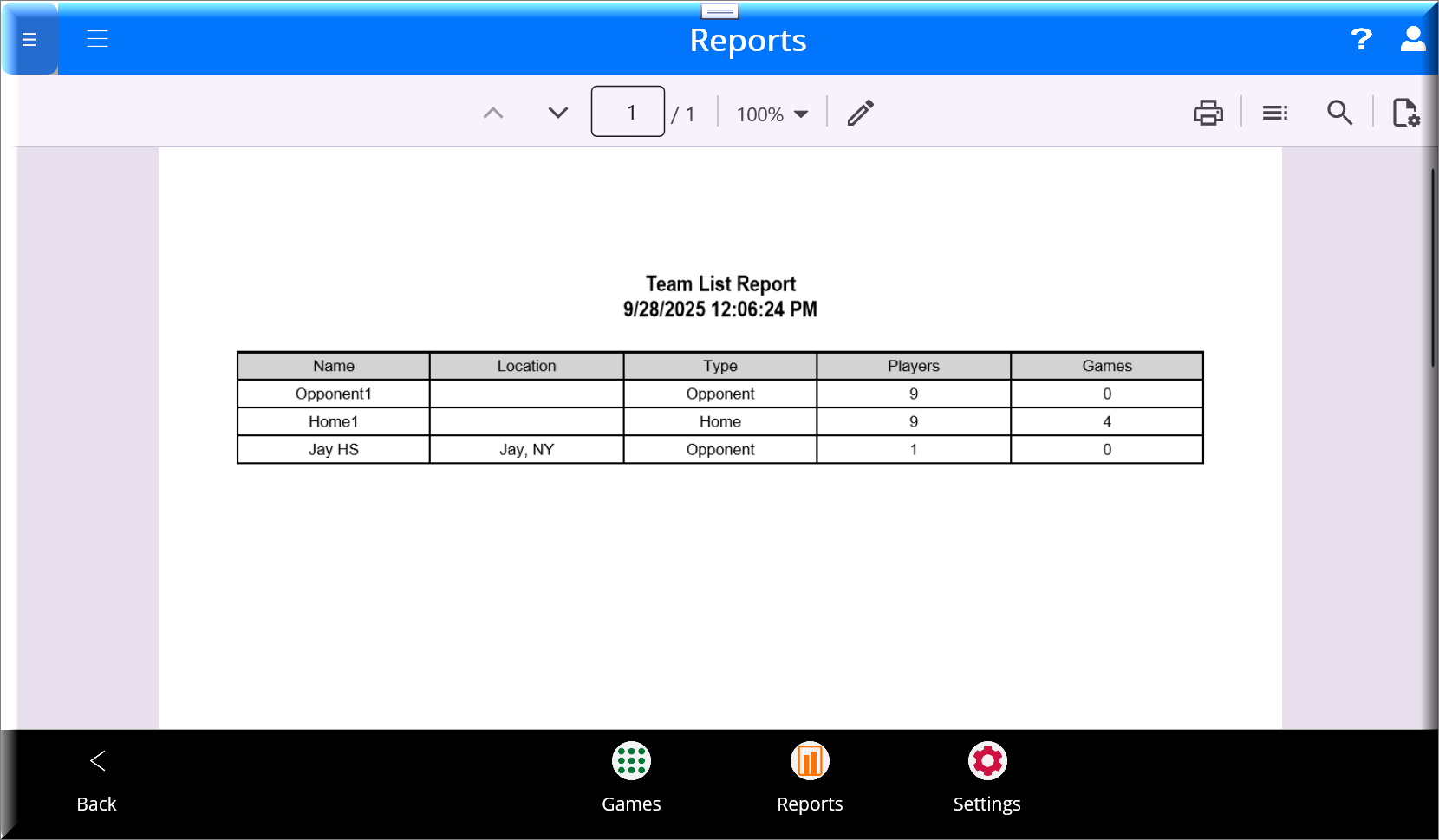
The Teams List Report provides a comprehensive view of all teams in the system, including key details like location, type, and associated players and games. This report helps you quickly assess team information and activity.
Columns in the Report
- Name:
- Displays the name of each team.
- Location:
- It shows the city where the team is based.
- Type:
- Indicates the team type (e.g., Home, Opponent).
- Players:
- The total number of players set up for the team.
- Games:
- The total number of games entered for the team.
Filtering Options
- Accessing Filters:
- Tap the Hamburger Icon in the upper-left corner to open the filter popup.
- Available Filters:
- Date: Filter teams based on a specific date or date range.
- Team Type: Narrow the list by selecting a specific team type (e.g., Home, Opponent).
Once filters are applied, the report only displays the matching results.
Navigation
- Use the hamburger menu to refine the report data.
- Tap on column headers or team names (if enabled) to view additional details or navigate to related screens (if applicable).
List of Players by Team Report Overview
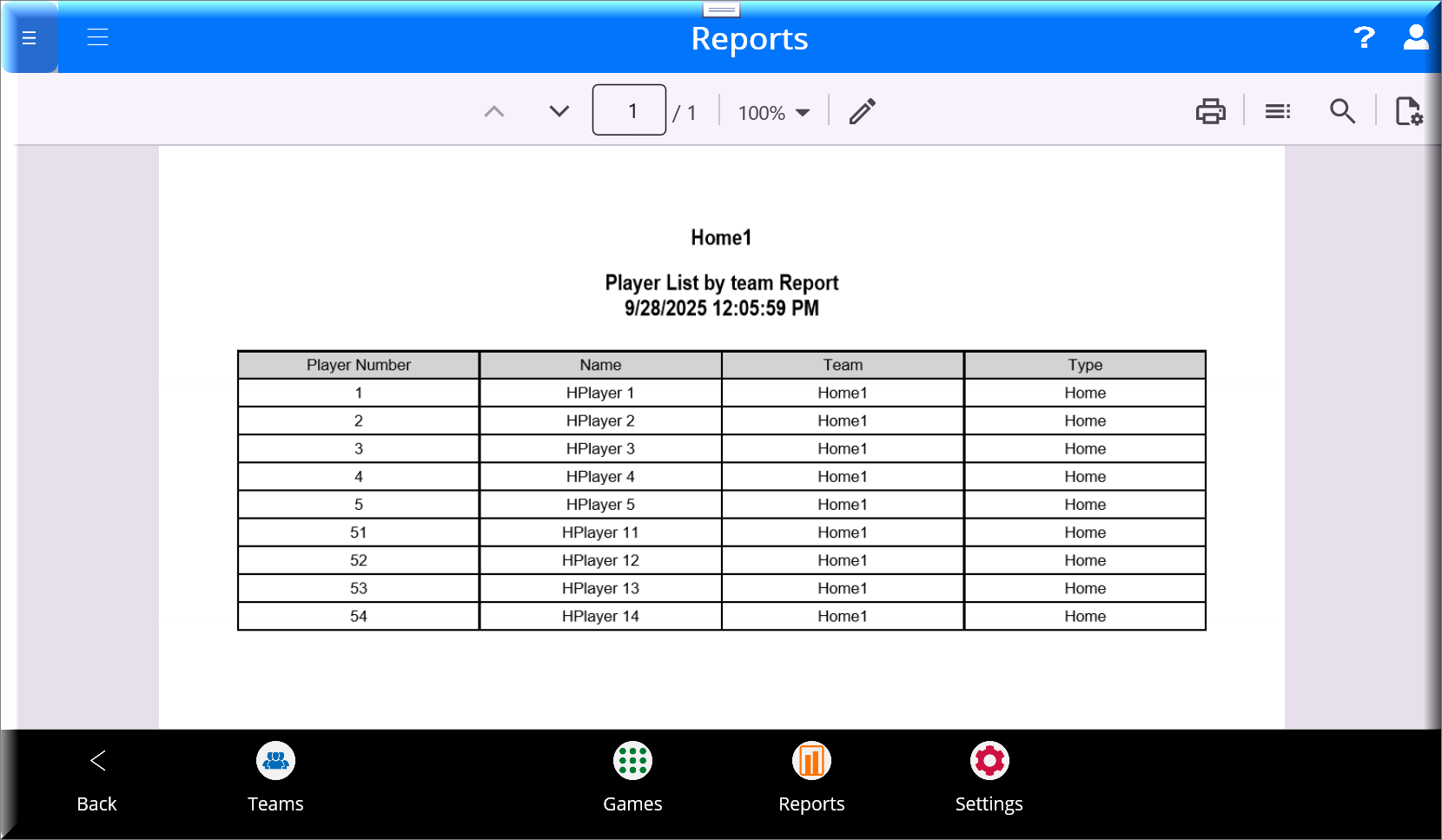
The List of Players by Team Report provides a detailed view of players associated with each team. This report helps you quickly review player details, associations, and types.
Columns in the Report
- Player Number:
- Displays the number on the player’s jersey.
- Name:
- The player’s name.
- Team:
- The name of the team the player is associated with.
- Type:
- The type of the team (e.g., Home, Opponent).
Filtering Options
- Accessing Filters:
- Tap the Hamburger Icon in the upper-left corner to open the filter popup.
- Available Filters:
- Date: Filter players based on a specific date or date range.
- Team Type: Narrow the report by selecting a specific team type (e.g., Home, Opponent).
Once filters are applied, the report only displays the relevant results.
Usage
- Use this report to:
- Review the roster for a specific team.
- Analyze player distribution across different team types.
- Filter and focus on active players on particular dates or when associated with specific teams.
The List of Players by Team Report is an invaluable tool for efficiently organizing and analyzing player and team data.
Highest Scoring Players Report
Helps to identify your highest scorers by game or team
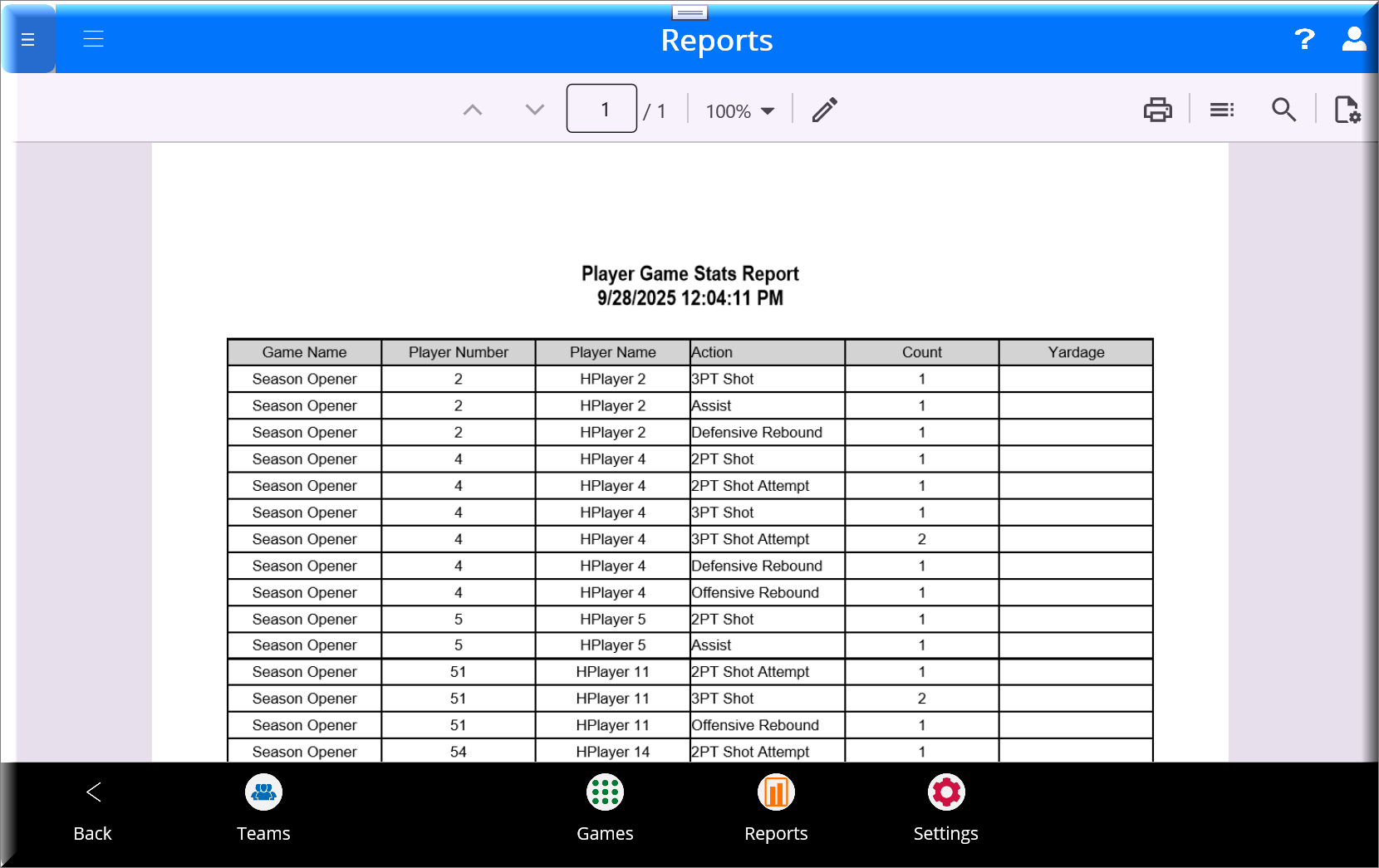
Player Game Stats Report
Provides detailed statistics for individual players, including points, assists, rebounds, and more.
Game Shot Location Report
Analyzes where shots were taken and whether they were successful at a quick glance.